Thursday, July 31, 2008

Required - Film Editing Instructor at NYFA

Yours truly was just looking through interesting filmmaking jobs at mandy.com when one particularly interesting one caught the eye.

The New York Film Academy (NYFA) seems on the lookout for a new film editing instructor. The invite for applications looks something like this:

Vacancy: Editing Instructor
Employer: New York Film Academy
Location: Universal City
Duration: part time, starts ASAP

Los Angeles area film school seeks instructor of Editing. Topics include: basic and advanced editing, color correction, sound editing, compositing, titles and the fundamentals of VFX. All classes are taught on Final Cut Pro. MFA or
equivalent industry experience required. Position is part time and starts immediately.
Web: http://nyfa.edu/

Apply to: Kristen Abitabile, 100 Universal City Plaza Drive, Building 9128, Suite 179, Universal City, CA 91608

Interested parties should apply directly using the online form at mandy.com via this link.

Friday, June 27, 2008

Open Source Filmmaking - the new experiment

Once an expensive, difficult and inaccessible profession to break into, filmmaking has now opened up to the masses. With the digital revolution, anyone with a digital video camera and access to basic editing software can make a film.

Along with this accessibility has come a new wave of collaborative, open source filmmaking, where writers, videographers, musicians and producers share their work on a film project -- often entirely in the virtual realm. Sometimes these collaborators know each other, and sometimes they don't.

Solomon Rothman, 27, who runs Solomon Rothman Films, is one of those on the cutting edge of this trend. In 2006, he released a film called "The Boy Who Never Slept," and at the same time he released all of the footage as open source material, so people could tweak, remix and reshape it however they liked. It was used by teachers in video editing classes, made into a music video in Romania and put on Finnish television.

"I still receive e-mails every week [about that film]. People are still playing
with it."

Rothman's latest project, "Jathia's Wager," is an even more thoroughly collaborative project than his first. It began with him posting a seven-page script on his Web site in 2007, calling for people to send in different versions. He now has five versions he's received back that are ready to be shot, and he's hoping to have online, open source casting for the different versions of the films, with people voting on who will play what role. Ultimately, he wants to produce all the versions, using the skills and perspectives of the people who are gathering around the project.

"The entire process is being built by the community. With the digital
revolution, it's all accessible. Filmmaking used to be really expensive and
inaccessible. Now anyone can make a film if they want. Technology has broken
down that wall."

Rothman said he sees open source filmmaking as an extension of the open source software model, which gives people a chance to collaborate in order to improve the creative product.
"People are really creative, when they work together, they can do so much more than they can alone. It's done wonderful things with software, making it more efficient, and of better quality. It's time for that now to go into films."

Rothman thinks of what he's doing with "Jathia's Wager" as being more crowdsourcing than open sourcing, since it's not just releasing footage to be remixed, but harnessing the power of people.

Dominick Del Bosque, owner of the Open Source Film Project in San Francisco, has a similar perspective.

"We don't view the source as the tangible parts, we see the 'source' as the people in a project."

Launched in 2005, the Open Source Film Project's vision is to bring together writers, directors, producers, musicians and financiers for the creation of independent films.

Read the full article at Linux Insider

Sunday, June 15, 2008

Synchronizing Camera Angles by Timecode in FCP

final cut proIn Final Cut Pro, an alternate way to sync clips of a multi-camera production is to use timecode as a reference. When clips share the same timecode, you don't have to set an In point to sync them together. A timecode number in one clip should identify the same action in an event as that same timecode number in a different clip. The method of switching and cutting angles in the multiclip is the same, no matter how the clips are synchronized.

1. In the Browser, Ctrl-click the Sequences bin and choose New Sequence from the shortcut menu. Name this sequence Timecode, and open it in the Timeline.
Each new sequence you create contains the same PAL settings you chose from the Easy Setup window earlier in this lesson.

2. Hide the contents of the Audio Pops bin, and display the contents of the Timecode bin.

3. Double-click the Gilly_cu clip, and play from the beginning of the clip. When Gilly steps up to the mic to start singing, stop the clip and look at the timecode number in the Current Timecode field in the Viewer.

fcp timecode


4. Open a few other clips from the Timecode bin and compare the timecode numbers at the location where Gilly starts to sing.

The same timecode number in all of these clips identifies the same event or clip location. For this group of clips, you can synchronize by timecode, even though they don't all start or stop on the same frame.

5. To make a multiclip of all the clips in the Timecode bin, Ctrl-click the bin and choose Make Multiclip from the shortcut menu.

6. In the Make Multiclip window, click the Synchronize Using pop-up and choose Timecode as the sync option.
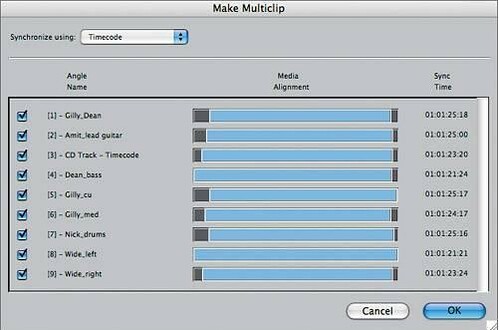
fcp timecode

The blue bars of each angle reposition to align the clips by timecode. Notice how the blue bars seem to cover the same relative area. They were taken from the same portion of the song but are not exactly the same length.

7. Click OK. In the Timecode bin, rename the new multiclip Timecode, and double-click to open it in the Viewer.

8. In the Viewer button bar, click the Show Multiclip Overlays button to toggle off the overlays in this multiclip.
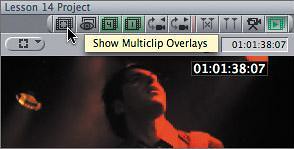
multiclip editing

9. In the Viewer, click the View pop-up and choose Multiclip 9-Up from the pop-up menu to see all the multiclip angles. Play this portion of the music video.
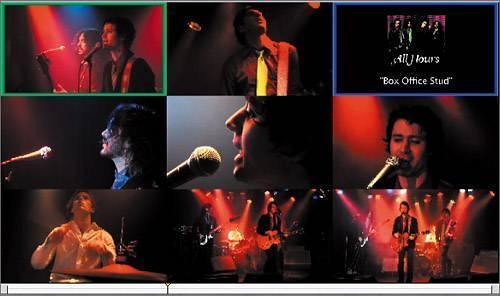
fcp camera angles

10. To edit this multiclip, use the same process you used with the Audio Pops multiclip. Start by changing the sync to Video+Audio and selecting the CD Track - Timecode clip. Then change the sync to Video and select the first video angle. Set an In point and an Out point where the angles are all in view, and edit the multiclip to the Timeline.

11. To see the clips play in the Viewer as you play the sequence, click the Playhead Sync pop-up, and choose Open from the menu, or press Shift-Ctrl-O. This will allow you to see the angles as you play and cut in real-time.

At this point, you can edit these clips as you did in previous exercises: either by moving the playhead to an exact edit location and cutting to a new angle, or by cutting live.

NOTE
If you are using a laptop or slower computer, this nine-clip multiclip may play slowly.
Digital Filmmaking is the way to go...